> For the complete documentation index, see [llms.txt](https://guide.404.xyz/llms.txt). Markdown versions of documentation pages are available by appending `.md` to page URLs; this page is available as [Markdown](https://guide.404.xyz/404-gen-user-guide/getting-started/404-gen-unity-plugin.md).
# 404—GEN Unity Plugin
v0.7.1 (Released May 2026)
## Overview
The **404—GEN Unity Plugin** is a decentralised AI-powered toolset designed to generate production-ready 3D Meshes and 3D Gaussian Splats (3DGS) natively within the Unity Engine. Below is a breakdown of **404—GEN**’s core components:
* **3D Generation:** A text or 2D-to-3D asset generation engine.
* **Splat Editing:** Geometry and Shader Node trees that allow users to view and edit Gaussian Splats directly in the Unity Scene View,
* **Mesh Conversion for 3DGS**: A specialised texture baking and mesh generation pipeline optimised to convert 3D Gaussian Splats into production-ready engine geometry.
#### Additional Features:
* **Spatial Cutouts:** Mask or remove specific points to polish your models.
* **Instant Mesh Colliders:** Add physics-ready convex colliders in a single click.
* **Lightweight Proxy Shadows:** Cast clean viewport and runtime shadows effortlessly.
* **PLY Export Pipeline:** Save and export your Gaussian Splat data for external use.
#### System Requirements
* *Unity Version: 6000.3.2 (Unity 6)*
* *Graphics API Requirements:*
* *Windows: DirectX 12*
* *macOS: Metal*
* *Linux: Vulkan*
## Installation
{% hint style="danger" %}
**Upgrading Users:** You must completely delete any previous versions of the **404—GEN** plugin from your project and restart the Unity Editor before installing the latest release.
{% endhint %}
### Instructions
### Step 1: Add to My Assets
1. Visit the **404—GEN** page on the [**Unity Asset Store**](https://assetstore.unity.com/packages/slug/311107).
2. Click **Add to My Assets** to link the plugin to your Unity account.
#### Step 2: Download the Package
1. Open your 3D Unity project.
2. Open the Package Manager by navigating to \[**Window**] ➡️ \[**Package Manager**].
3. Change the package source dropdown to \[**My Assets**].
Select **404—GEN** from the list and click \[**Download**].
#### Step 3: Import the Assets
1. Once the download completes, click \[**Import**].
2. In the Unity Import dialog window, leave all files selected and click \[**Import**].
#### Step 4: Configure Graphics & Restart
1. Navigate to \[**Edit**] ➡️ \[**Project Settings**] ➡️ \[**Player**].
2. Ensure your rendering backup is set to DirectX 12 for Windows, Metal for macOS, Vulkan for Linux.
{% hint style="warning" %}
Restart the Unity Editor to initialise the rendering pipeline.
{% endhint %}
## Usage Guide
### 1. Generating 3D Assets
1. Navigate to \[**Window**] ➡️ \[**404-GEN 3D Generator**] to open the central control panel.
2. Input a text description into the Text Prompt Field or assign an image to the 2D Image Prompt slot.
3. Click \[**Generate**]. Process times average 1 to 2 minutes.
#### Managing the Generation Queue
The Generator window monitors operational states (**Started**, **Completed**, or **Failed**). Use the action icons to manage tasks:
* **Cancel:** Terminate the active generation task.
* **Toggle Visibility:** Instantly show or hide the created Gaussian Splat model in the viewport.
* **Focus Asset:** Ping and select the generated model in the Scene view and Inspector window.
* **Retry:** Resend a failed or canceled prompt back to the network queue.
* **Logs:** Hover over this element to view real-time compilation log messages in a tooltip.
* **Delete:** Wipe the prompt entry from your persistent history tray.
* **Settings**: Jump directly to the project settings panel dedicated to this package.
### Prompt Optimisation
For structured prompt writing techniques, review our dedicated **Prompts Guide**.
{% content-ref url="/pages/e6nB40Vt4vaQCg3prgSW" %}
[404—GEN Prompt Guide](/404-gen-user-guide/getting-started/404-gen-prompt-guide.md)
{% endcontent-ref %}
## Technical Features & Adjustments
#### Transformations & Splat Properties
Beyond standard Transform components (Position, Rotation, Scale), the **404—GEN** Inspector includes two specialised scalar values:
* **Splat Scale**: Adjusts the uniform size of the individual ellipsoids forming the Gaussian Splat.
* **Opacity Scale**: Globally scales the alpha/opacity curves across all points simultaneously.
#### Spatial Cutouts
Isolate or crop sections of your cloud data using parametric volumes.
1. Select your Gaussian Splat asset in the hierarchy.
2. In the Inspector panel, locate the Cutouts section and click \[**Add Cutout**].
3. Select a geometric primitive shape (Box or Ellipsoid) and scale/position it manually in the scene view.
4. **Optional:** Check Invert to flip the rendering mask (hiding points inside the shape instead of outside).
#### Physics Colliders
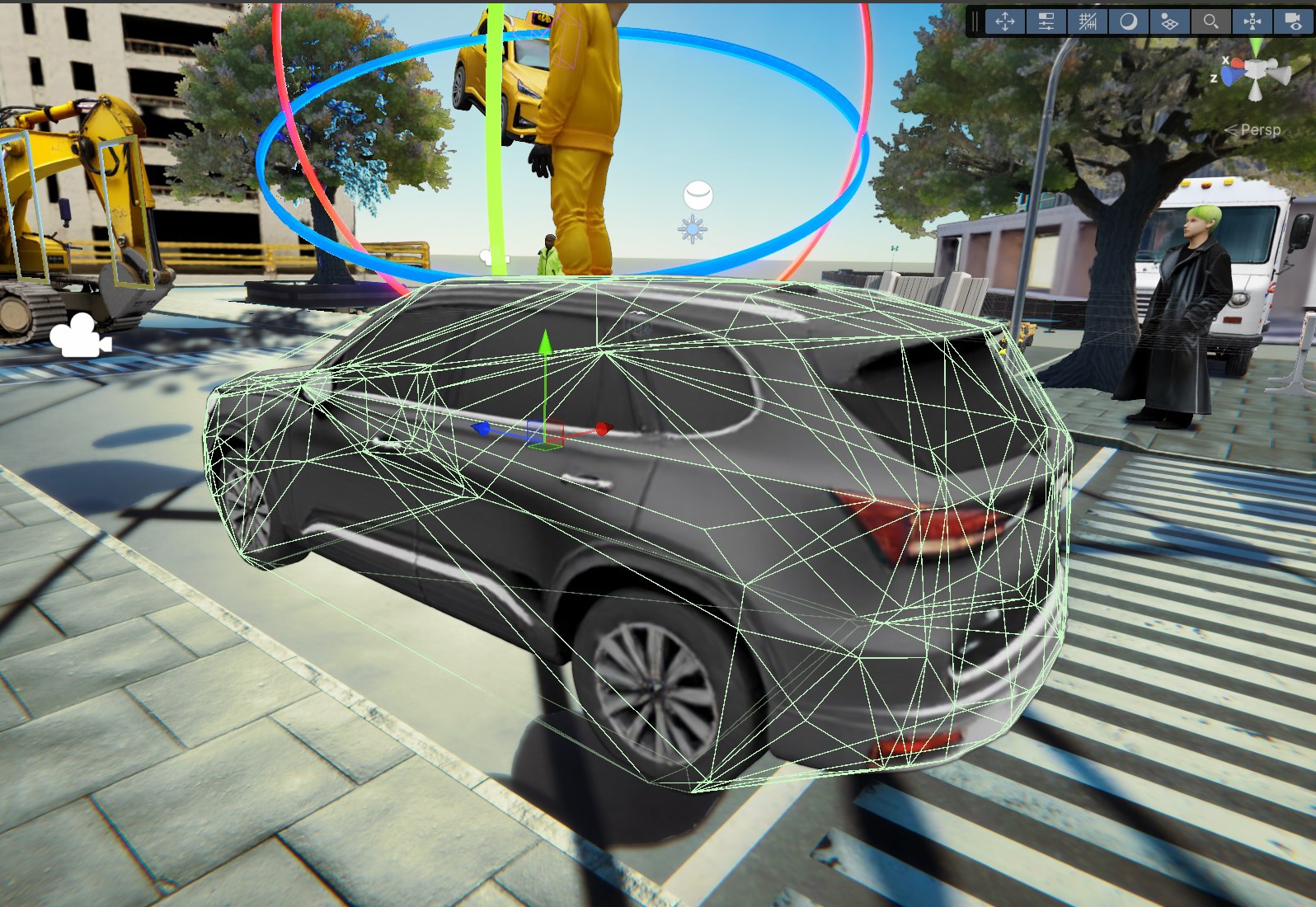
Because raw Gaussian Splats do not contain physical vertices, clicking \[**Add Mesh Collider**] in the Inspector dynamically wraps the asset in a lightweight convex hull mesh collider for physics interactions.
Model with Mesh Collider.
#### Lightweight Shadows
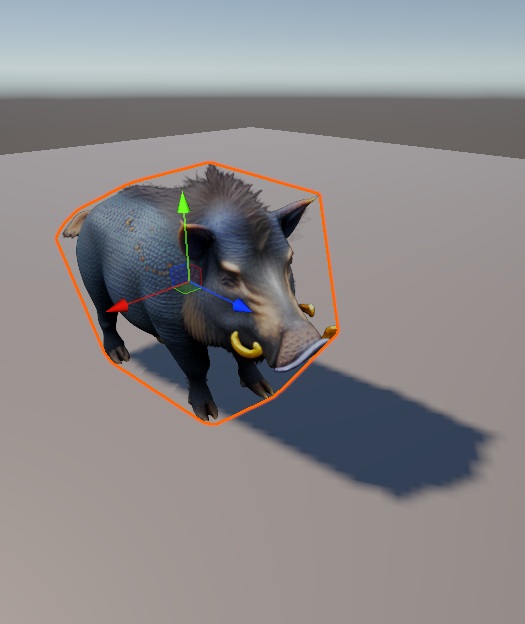
To cast real-time lighting shadows without performance degradation, click \[**Add Shadow**]. This instantiates an invisible, highly optimised convex hull mesh proxy that matches the footprint of the splat to cast clean, low-poly shadows.
Gaussian Splat with Shadow Applied.
#### Mesh Conversion
To convert a splat into standard engine geometry, click \[**Convert to Mesh**] to call up the conversion utility interface.
1. Target Assignment: Assign your active source Gaussian Splat component to the target input slot.
2. Path Setup: Define your chosen file output folder location inside the project ecosystem.
3. Detail Tuning: Utilise the integrated configuration sliders to adjust the level of detail (LOD) on the mesh output.
4. Execution: Click \[Start conversion to Mesh].
The pipeline takes approximately one minute to synthesise the Point Cloud data (.ply) into an FBX Mesh asset (.mesh). The utility automatically creates an operational GameObject instance directly in your current active Scene view hierarchy upon completion.
### PLY Export
* **Exporting:** Select any active splat asset and click \[**Export PLY**] to write standard format point cloud data out to disk.
* **Importing:** Drag and drop third-party .ply files directly into your Unity project's Assets folder, then install them directly into your scene.
## Gaussian Splats
To learn more about **3DGS** (3D Gaussian Splatting), visit the Gaussian Splatting section of this guide:
{% content-ref url="/pages/bZW3OYUQix6hx1nTgPWw" %}
[3D Gaussian Splatting (3DGS)](/404-gen-user-guide/extended-resources/3d-gaussian-splatting-3dgs.md)
{% endcontent-ref %}